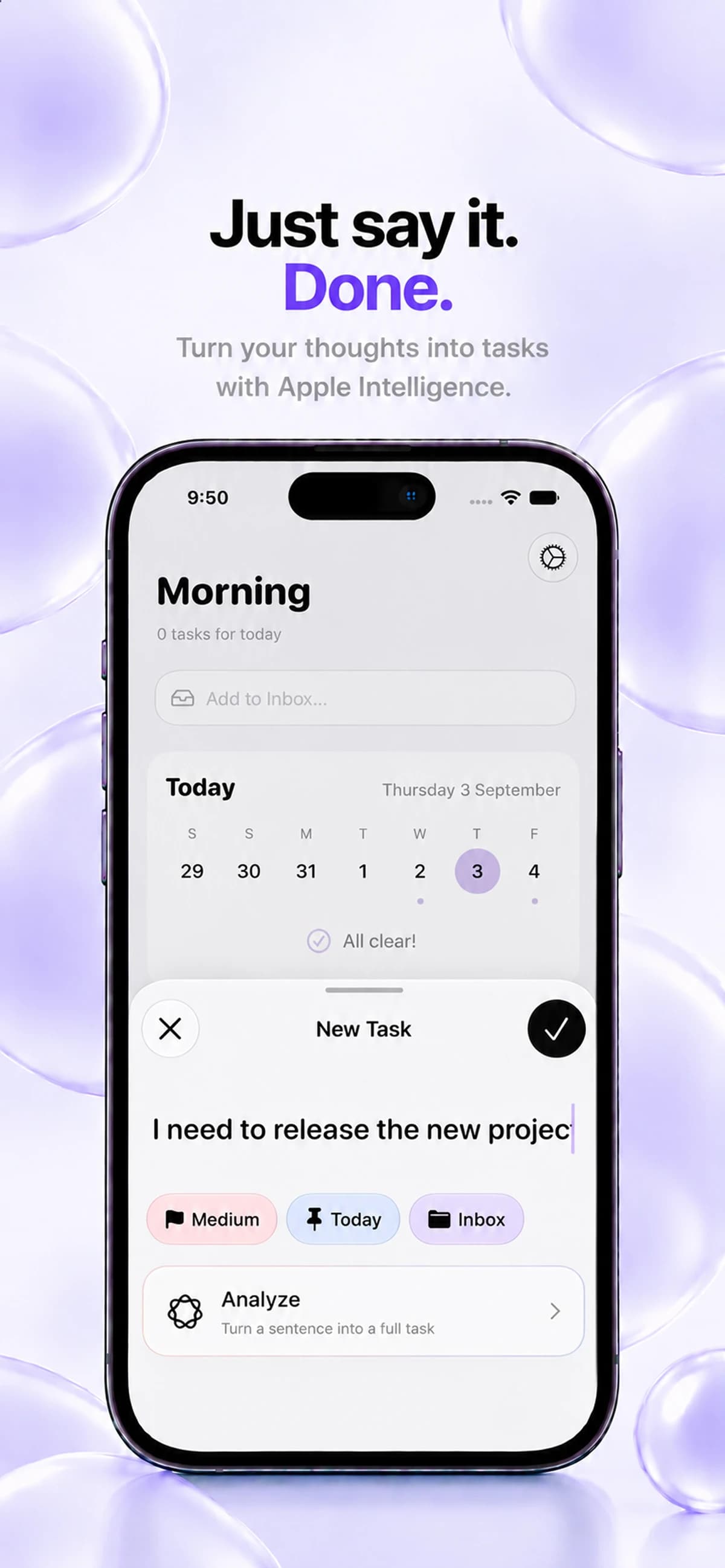
Apple Intelligence doesn’t decide for you. It saves you the typing: instead of filling in five fields, you write one sentence and check what Keepio made of it. Here is how to use it day to day, and what it needs to work.
What the Analyze button does
On the New task screen, write your task the way you would say it out loud. Then tap Analyze. Keepio runs Apple’s model directly on your device and suggests:
- a short title, without the filler words;
- a priority;
- a date, and a time if you mentioned one;
- the matching project, among the ones you already have;
- up to 3 tags.
Nothing is saved without you. You review the suggestion, fix anything that’s off, then confirm.
Example sentences and results
Results depend on your existing projects and tags. These examples show the kind of suggestion to expect.
| What you write | What Keepio can suggest |
|---|---|
| “Call the photographer back tomorrow at 2 pm about the Noma project, it’s urgent” | Call the photographer back · high priority · tomorrow 2:00 PM · Atelier Noma project · # photo |
| “Send the September invoice before Friday” | Send the September invoice · due Friday |
| “Remember to book the room for the demo” | Book the room for the demo · no date |
The more useful details your sentence contains (a date, a project name, a word that signals urgency), the more complete the suggestion. A vague sentence gives a vague task: make the action specific before you analyze it.
Three more uses beyond typing
Apple Intelligence also turns what you have already written into structure:
- From a note to tasks. Keepio spots the action items hidden in meeting notes and suggests up to 10 tasks. You keep the ones that matter.
- From a project to a plan. Every task in the project is assessed: how urgent it is, whether it can wait a week, and a suggested date within the project deadline. You apply the plan, or you don’t.
- Tags for your notes. Keepio suggests up to 3 topic tags so you can find a note again later.
What you need to use it
| Requirement | Details |
|---|---|
| Keepio+ | Apple Intelligence features are part of the Keepio+ one-time purchase. |
| System | iOS 26 or later on iPhone. |
| Device | An Apple Intelligence-compatible device. |
| Settings | Apple Intelligence enabled, in a supported language. |
| Model | The system model downloaded and ready. After that, everything works offline. |
If the Analyze button doesn’t appear, check these requirements in order. Most often, Apple Intelligence isn’t enabled yet or the model is still downloading.
Privacy: what stays on your device
The analysis happens on your device, with Apple’s model. Your sentence is not sent to a Keepio server, and the feature works without a connection once the model is ready. Your tasks stay stored locally and in your private iCloud.
Putting it into practice in Keepio
Start with the tasks you type most often: reminders, follow-ups, appointments. They benefit the most from an analyzed sentence. Keep regular input for very short tasks, where analysis adds nothing.
To fit quick capture into a complete routine, read how to plan your day without juggling apps.
Frequently asked questions
Is Apple Intelligence free in Keepio?
No. Apple Intelligence features are part of Keepio+, a one-time purchase on the App Store with no subscription. Managing tasks, projects and notes stays free.
Do I need an internet connection to use Analyze?
No, once Apple’s model is downloaded and ready. The analysis runs on your device, so it also works offline.
Can Keepio get it wrong?
Yes. A suggestion can misread a date or pick the wrong project. That’s why nothing is saved until you confirm: always review the task before adding it.
Why doesn’t the Analyze button appear?
Check that you have Keepio+, iOS 26 or later, a compatible device, Apple Intelligence enabled in a supported language, and that the system model has finished downloading.
Try this today: write your next task as a single sentence with a date and a project, tap Analyze and compare the suggestion with what you would have typed by hand.
See Apple Intelligence in Keepio for every available feature.