If your list keeps overflowing, start by rethinking what it’s for. A list can help you choose your next move. It gets much harder to use when it mixes tomorrow’s groceries, a big personal project and every request you’ve received over the past three weeks.
1. Separate what you want to keep from what you’ll do today
Keep a master list to collect tasks and ideas. Then build your daily list from it. This split lets you hold on to a request without committing to handle it right away.
For example, “Compare places to stay for the trip” can stay in your vacation project until you plan to work on it. “Send the document that’s due tonight” calls for a more immediate decision.
If an item looks like “Plan the trip”, first pin down an action. A whole project is hard to fit into a checkbox. The guide to breaking a project down into concrete tasks helps you go from the goal to that first step.
2. Look at the time available before you pick your tasks
Factor in meetings, appointments, travel and everyday obligations. Then estimate the blocks of time you can give to the tasks on your list.
A day with several appointments doesn’t offer the same capacity as a free morning. Leave some slack for interruptions and for tasks that take longer than planned. You can fine-tune that buffer by looking back at your previous days.
3. Choose your priorities with three questions
For each important task, ask yourself:
- Is there a real deadline or a consequence if it waits?
- Does this action move forward a commitment or a goal that matters to me?
- Can I do it with the time and information I have?
Three priorities make a good starting point. Treat that number as a guide: a single important task can fill a whole day, while several small actions can fit into a short slot.
If you’re waiting on information, you might pick an action that unblocks things instead: asking for a room’s measurements before comparing furniture, for example.
4. Turn an overflowing list into a workable plan
Here is an example for a day that leaves about an hour and a half of available work time outside fixed commitments. The durations are only there to illustrate the choice.
| Starting list | Decision for today |
|---|---|
| Redo my portfolio | Pick the three projects to showcase: allow 40 minutes. |
| Reply to clients | Send the quote that’s due today: allow 20 minutes. |
| Plan the trip | Keep comparing places to stay in the Trip project. |
| Tidy the whole house | Pick another time, depending on what the household needs. |
| Review an old document that’s no longer useful | Remove the task if it no longer serves a purpose. |
The two actions you kept add up to about an hour of estimated work. The remaining half hour gives you some slack. If the first action ends up taking longer, rework the plan with the quote’s deadline in mind.
5. Also decide what can come off the list
An old task sometimes deserves a fresh decision. Is it still useful? Can it be handed to someone who has agreed to take it on? Can it wait for a better date?
Postponing a task makes more sense when you know why and when you’ll look at it again. If it comes back every day without moving, find out what’s blocking it: its wording, its size, missing information or how much it really matters.
Putting this method into practice in Keepio
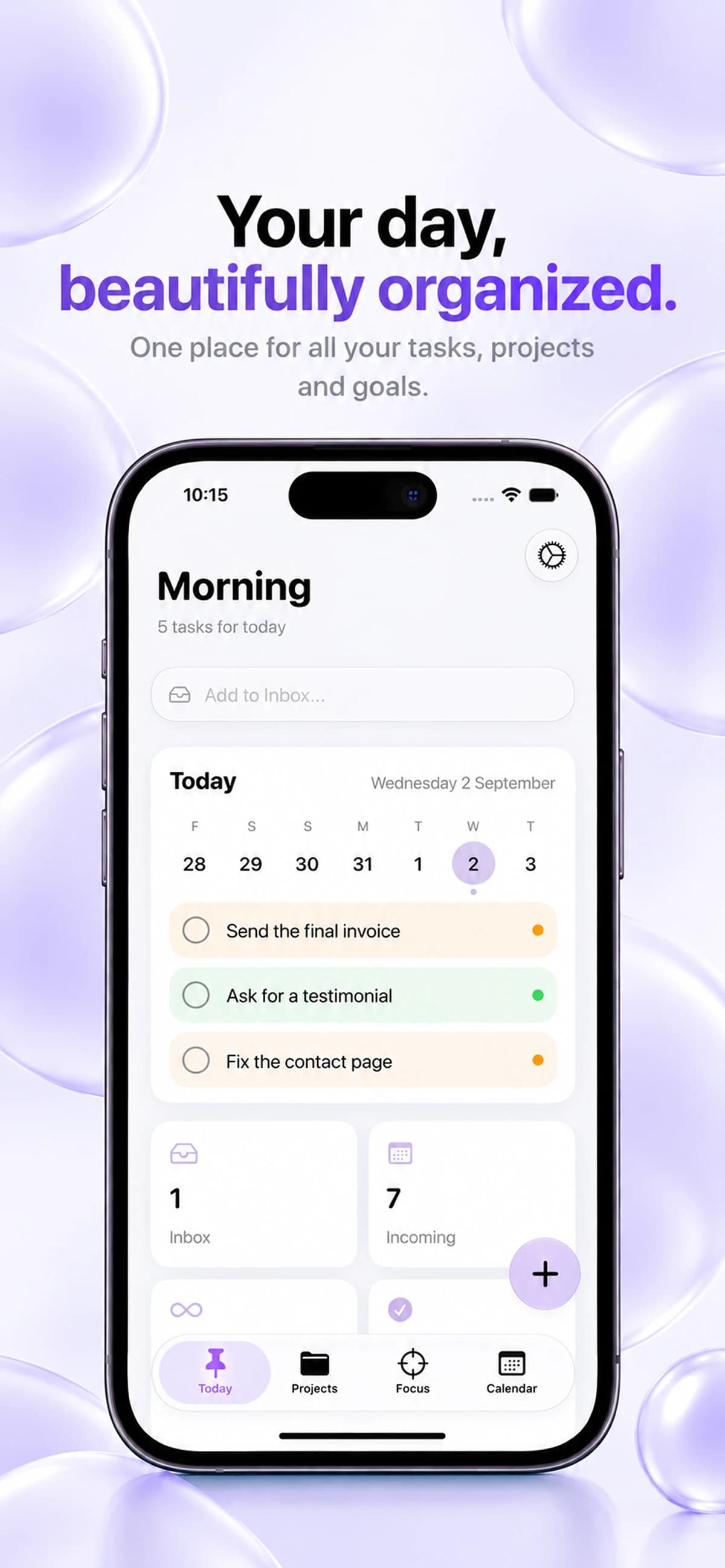
In Keepio, the inbox holds tasks before you sort them. You can attach them to their projects, check deadlines in the calendar and find the day’s tasks in the Today view.
Start with a single project and a short list. The app keeps the context while you choose where to focus. To step back and look at the days ahead, pair this approach with planning your week.
Your checklist before you start
- I’ve looked at my fixed commitments.
- My tasks describe concrete actions.
- The planned workload leaves some slack.
- I know which action to start first.
- The other tasks stay somewhere I’ll review.
Frequently asked questions
How many tasks should you put on a daily to-do list?
Start from the time you actually have once meetings, appointments and obligations are accounted for, rather than from a fixed number. Three priorities make a good starting point, but a single important task can already fill a day. Always leave some slack for interruptions and for tasks that take longer than planned.
How do you choose priorities when everything feels urgent?
Ask three questions about each task: is there a real deadline or a consequence if it waits, does the action move forward a commitment that matters to you, and can you do it with the time and information you have? The tasks that meet these criteria go first. The others stay on your master list, to review later.
What should you do with tasks you postpone every day?
A task that comes back every day without moving deserves a fresh decision. Check whether its wording is too vague, whether it’s too big, whether information is missing or whether it still matters. You can then rewrite it as a concrete action, hand it off, schedule it for a specific date or remove it.
Should you keep a master list and a daily list separately?
Yes, separating the two makes your to-do list more realistic. The master list collects all your tasks and ideas, while the daily list keeps only the actions you genuinely plan to do today. In Keepio, the inbox collects new tasks and the Today view gathers the day’s tasks.
Try this today: go back to your list, pick one achievable priority and spell out what you want to have finished by the end of your next work block.
See task management in Keepio to apply this method every day.